
PDF Viewer SDK ActiveX 13.0
Platform : Windows 11, Windows 10, Windows 8, Vista, XP
It is PDF Viewer SDK, fast open PDF, support print a PDF, searching the text with C , C#, VB.Net , VB6, Delphi, Vfp, MS Access.


VFP - How to add PDF Stamp to a PDF
Step 1: To install the PDF Viewer SDK ActiveX, begin by launching the setup file (http://www.viscomsoft.com/demo/imageviewercpprosetup.exe). Select the desired installation folder for the PDF Viewer SDK ActiveX and continue with the installation on your development computer.
Step 2: Launch VFP - Visual Foxpro. select New Project.
Step 3: Select Tools - Options... , select Control tabs, select PDF Viewer ActiveX Control, click OK button.
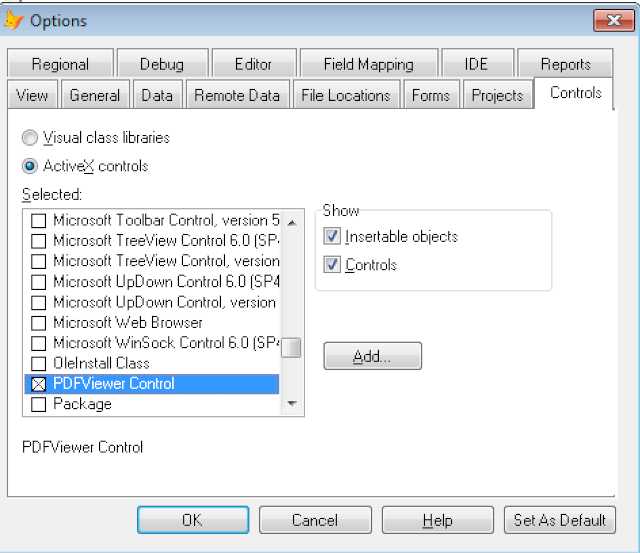
Step 3: Select Tools - Options... , select Control tabs, select PDF Viewer ActiveX Control, click OK button.
Step 4: Select Forms - click New... button to add new form.

Step 5: Select form1, click Modify button.
Step 6: In Form Controls Toolbar, click View Classes button, then select ActiveX Controls.
 }
}Step 7: Now you will see the PDF Viewer ActiveX Control, drag it on form.

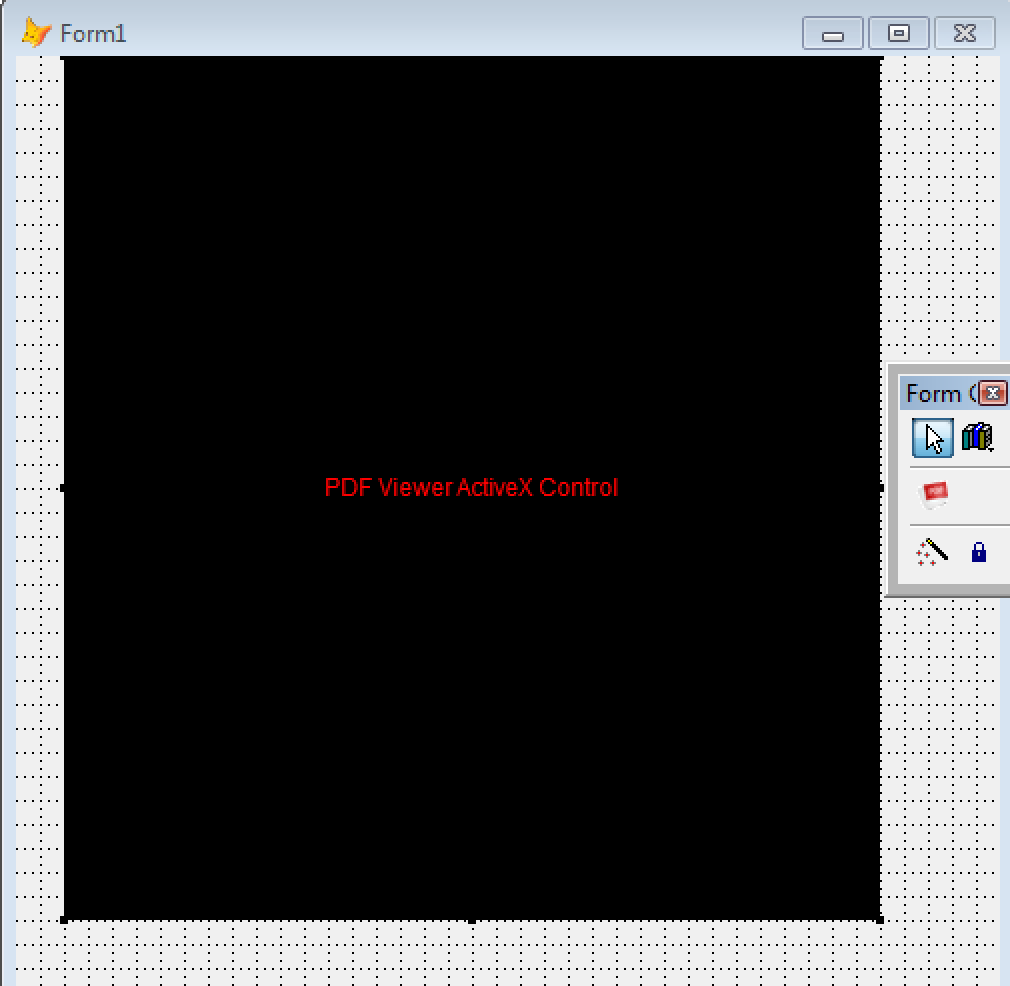
Step 8: Create the UI as the following
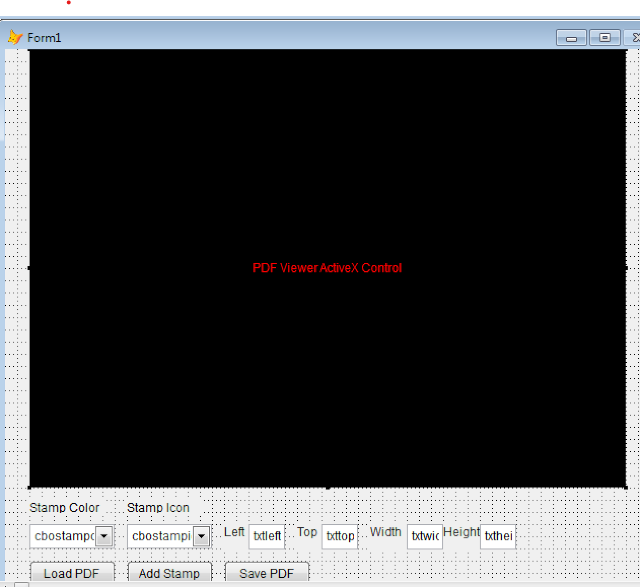
Step 9: In form init event, add the following code
thisform.cbostampicon.AddItem("Approved")
thisform.cbostampicon.AddItem("Asls")
thisform.cbostampicon.AddItem("Confidential")
thisform.cbostampicon.AddItem("Departmental")
thisform.cbostampicon.AddItem("Draft")
thisform.cbostampicon.AddItem("Experimental")
thisform.cbostampicon.AddItem("Expired")
thisform.cbostampicon.AddItem("Final")
thisform.cbostampicon.AddItem("ForComment")
thisform.cbostampicon.AddItem("ForPublicRelease")
thisform.cbostampicon.AddItem("NotApproved")
thisform.cbostampicon.AddItem("NotForPublicRelease")
thisform.cbostampicon.AddItem("Sold")
thisform.cbostampicon.AddItem("TopSecret")
thisform.cbostampicon.ListIndex = 1
thisform.cbostampcolor.AddItem("transparent")
thisform.cbostampcolor.AddItem("aqua")
thisform.cbostampcolor.AddItem("black")
thisform.cbostampcolor.AddItem("blue")
thisform.cbostampcolor.AddItem("fuchsia")
thisform.cbostampcolor.AddItem("gray")
thisform.cbostampcolor.AddItem("green")
thisform.cbostampcolor.AddItem("lime")
thisform.cbostampcolor.AddItem("maroon")
thisform.cbostampcolor.AddItem("navy")
thisform.cbostampcolor.AddItem("olive")
thisform.cbostampcolor.AddItem("orange")
thisform.cbostampcolor.AddItem("purple")
thisform.cbostampcolor.AddItem("red")
thisform.cbostampcolor.AddItem("silver")
thisform.cbostampcolor.AddItem("teal")
thisform.cbostampcolor.AddItem("white")
thisform.cbostampcolor.AddItem("yellow")
thisform.cbostampcolor.ListIndex = 4
Step 10: In Open PDF button click event, add the following codestrfile = GETFILE('pdf', 'Browse PDF file', 'Browse', 1, 'Select PDF file ')
thisform.pdfviewer.LoadPDFFile (strfile)
thisform.pdfviewer.PDFClearStamp
Step 11: In Add PDF Stamp button click event, add the following code
thisform.pdfviewer.PDFAddStamp(1, thisform.cbostampicon.ListIndex-1, thisform.txtleft.Value, thisform.txttop.value, thisform.txtwidth.value, thisform.txtheight.Value, thisform.cbostampcolor.ListIndex-1, ALLTRIM(thisform.txtstamptext.Text))
Step 12: In Save PDF button click event, add the following code
strOutputFile=GETFILE('pdf', 'Output PDF file', 'Browse', 1, 'Select')
bResult =thisform.pdfviewer.savePDF (strOutputFile)
IF bResult then
=MESSAGEBOX("Save PDF Completed")

Latest Releases
- PDF Viewer SDK ActiveX x64 9.0 Released (21 September, 2026)
- PDF Viewer SDK ActiveX 13.0 Released (17 September, 2026)
- Image Viewer CP Pro SDK ActiveX 25.0 Released (17 June, 2026)
- Image Viewer CP SDK ActiveX x64 18.0 Released (13 May,2026)
- PDF Viewer SDK ActiveX x64 8.5 Released (23, February, 2026)
- PDF Viewer SDK ActiveX 12.0 Released (4 February, 2026)
- VideoCap Live Streaming SDK ActiveX 13.0 Released (19 January, 2026)
- Image Viewer CP Gold SDK ActiveX Released (14 January, 2026)
- Image Viewer CP Pro SDK ActiveX 24.5 Released (12 January, 2026)
- VideoCap Pro SDK ActiveX 18.0 Released (13 December, 2025)
- View All

Popular Solutions
- VB6 - How to add PDF Stamp to a PDF
- VFP - How to add PDF Stamp to a PDF
- C# - How to add PDF Stamp to a PDF
- VB.NET - How to add PDF Stamp to a PDF
- VB.NET - How to create EPUB Reader
- Bug Fixes -VideoCap Pro SDK ActiveX, VideoCap SDK, VideoCap Pro ActiveX x64: display empty video format on some Windows OS.
- MS Access 2016 - How to Convert text to speech
- Free Video Converter - Add Overlay Image on Video
- VB.NET - How to display PDF Thumbnail and PDF Viewer
- C# - PDF Viewer SDK ActiveX 9.0 fixed the display PDF issue
- View All
Special Offers
